> ## Documentation Index
> Fetch the complete documentation index at: https://docs.hi-doctor.ai/llms.txt
> Use this file to discover all available pages before exploring further.
# Connect Hi-Doctor to Claude
> Add the Hi-Doctor connector to Claude in one click, sign in or create an account, and complete a consultation by chat.
Claude can talk to your Hi-Doctor account directly. Once connected, it can
complete a medical questionnaire with you, get you a payment link, read your
prescriptions and orders, message your medical team, and track your progress.
## One-click install
Opens Claude's **Add custom connector** dialog with the name and URL already
filled in. Review it, then click **Add**.
If the link does not open the dialog, add it by hand — the URL is the only
thing you need:
```text Connector URL theme={null}
https://mcp.hi-doctor.ai/mcp
```
In Claude, go to **Settings → Connectors** and choose
**Add custom connector**.
Name it `Hi-Doctor` and paste `https://mcp.hi-doctor.ai/mcp`. There is no
API key, no client ID and no secret to configure.
Claude opens a Hi-Doctor approval page in your browser.
Both `https://mcp.hi-doctor.ai/mcp` and `https://mcp.hi-doctor.ai` work. The
first is the canonical address and the one to prefer.
## Approving the connection
The approval page is served by Hi-Doctor, not by Claude. Your password is
entered here and goes only to Hi-Doctor.
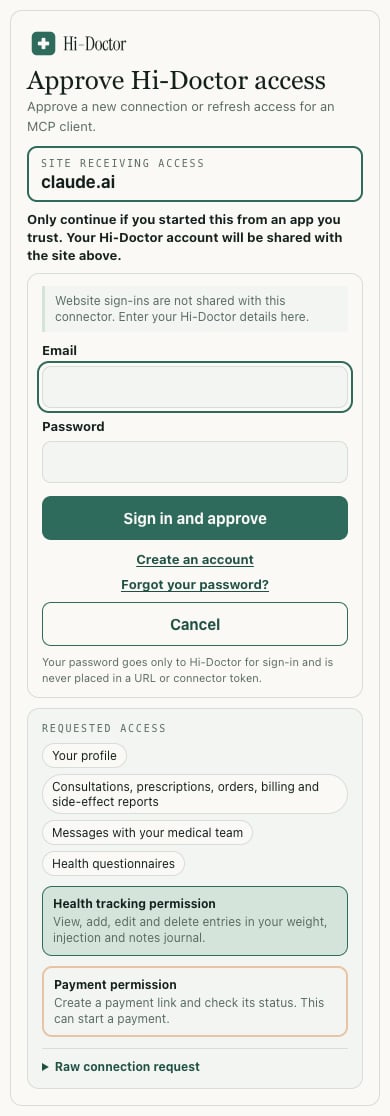 Three things to check before you continue:
1. **Site receiving access** — the box at the top names the app that will get
access. Connecting from Claude should say `claude.ai`. If it names something
you do not recognise, stop.
2. **Requested access** — the permissions panel lists exactly what the app is
asking for, in plain language.
3. **Payment** is shown on its own, because it is the group that can lead to a
charge. Nothing is charged without you completing Stripe's checkout — except
an early order, which is immediate and cannot be undone.
Only continue if **you** started this from an app you trust. Approving gives
the connected app access to your medical records, messages and prescriptions.
## No Hi-Doctor account yet?
You do not need to sign up on the website first. The approval page has a
**Create an account** link, and the whole signup happens in place.
Three things to check before you continue:
1. **Site receiving access** — the box at the top names the app that will get
access. Connecting from Claude should say `claude.ai`. If it names something
you do not recognise, stop.
2. **Requested access** — the permissions panel lists exactly what the app is
asking for, in plain language.
3. **Payment** is shown on its own, because it is the group that can lead to a
charge. Nothing is charged without you completing Stripe's checkout — except
an early order, which is immediate and cannot be undone.
Only continue if **you** started this from an app you trust. Approving gives
the connected app access to your medical records, messages and prescriptions.
## No Hi-Doctor account yet?
You do not need to sign up on the website first. The approval page has a
**Create an account** link, and the whole signup happens in place.
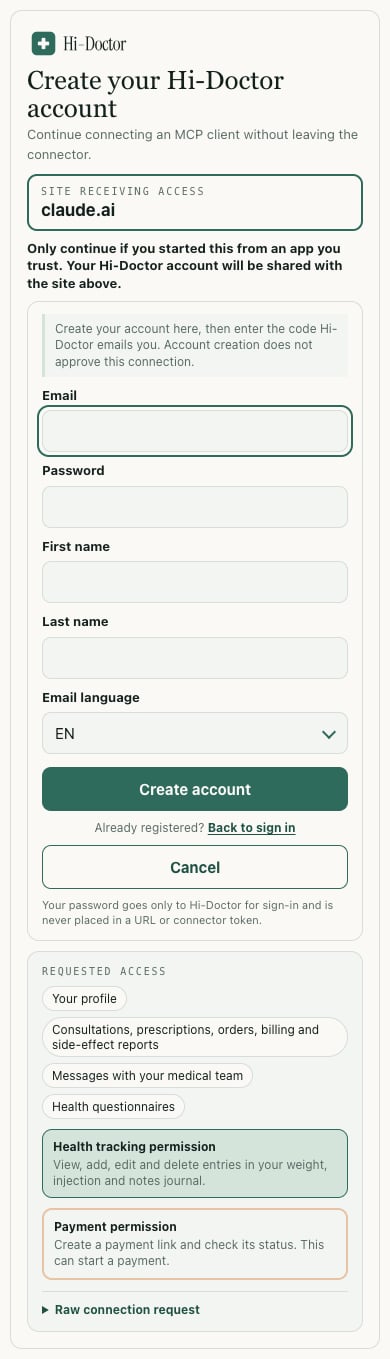 Enter your email, a password and your name, and pick the language your
Hi-Doctor emails should use. Hi-Doctor sends you a one-time code.
Type the code from your inbox. There is no way to skip this step and no
resend button — if the code is lost or expires, start the signup again with
the same address and a fresh one is sent.
You land on the permissions screen and approve, exactly as an existing
patient would.
Creating an account is **not** the same as approving the connection. You always
see what you are granting and press approve yourself.
## Things you can ask Claude
* *"Start a weight-loss consultation."* — then answer the doctor's questions one
at a time, in conversation, in your own language.
* *"Read my answers back to me before submitting."*
* *"Change my height — I gave the wrong number."*
* *"Send me the payment link for my treatment plan."*
* *"What's the status of my prescription?"*
* *"Tell my medical team the injection site is sore."*
* *"Log my weight for today: 84.2 kg."*
* *"What did I weigh last Tuesday?"*
* *"Cancel my subscription."*
## What Claude cannot do
It acts as **you**, with your own account's permissions — never more.
Approving a consultation, prescribing, and changing a dose are **absent from
the tool surface entirely**, not merely restricted. A registered doctor makes
those decisions after reviewing your answers. Claude also cannot read anyone
else's data, and cannot talk its way past the clinical eligibility checks.
Never let Claude answer a medical question on your behalf. A guessed answer
becomes part of the record a doctor prescribes from. "I don't know" is a real
answer — say it rather than accepting a plausible guess.
## If something goes wrong
Reload the approval page and try again. If your browser blocked the return
trip, the page re-renders with your email preserved so you can confirm once
more.
The connector URL is wrong or unreachable. Use
`https://mcp.hi-doctor.ai/mcp`.
An account created with Google sign-in has no password, and connector
sign-in is password-based. The approval page says so and links to
**Forgot your password?** — use it to set a password, then connect.
Progress tracking is for **weight-loss treatment only** — it is not offered
on hair-growth or sexual-health plans. If you are on a weight-loss plan and
the tools are still missing, disconnect and reconnect so the permission is
granted again.
Use **Cancel** on the approval page. It returns you to Claude with a proper
"access denied" answer, so Claude knows you declined rather than waiting for
a reply that never comes.
## Disconnecting
Remove the connector in **Settings → Connectors**. Access stops immediately.
Reconnecting asks for your approval again.
## Other clients
Any MCP client that supports remote servers with OAuth works the same way —
see [Connect](/mcp/connect). If you are building an assistant on top of
Hi-Doctor rather than using one, start with
[Build on Hi-Doctor with AI](/mcp/ai-integration).
Enter your email, a password and your name, and pick the language your
Hi-Doctor emails should use. Hi-Doctor sends you a one-time code.
Type the code from your inbox. There is no way to skip this step and no
resend button — if the code is lost or expires, start the signup again with
the same address and a fresh one is sent.
You land on the permissions screen and approve, exactly as an existing
patient would.
Creating an account is **not** the same as approving the connection. You always
see what you are granting and press approve yourself.
## Things you can ask Claude
* *"Start a weight-loss consultation."* — then answer the doctor's questions one
at a time, in conversation, in your own language.
* *"Read my answers back to me before submitting."*
* *"Change my height — I gave the wrong number."*
* *"Send me the payment link for my treatment plan."*
* *"What's the status of my prescription?"*
* *"Tell my medical team the injection site is sore."*
* *"Log my weight for today: 84.2 kg."*
* *"What did I weigh last Tuesday?"*
* *"Cancel my subscription."*
## What Claude cannot do
It acts as **you**, with your own account's permissions — never more.
Approving a consultation, prescribing, and changing a dose are **absent from
the tool surface entirely**, not merely restricted. A registered doctor makes
those decisions after reviewing your answers. Claude also cannot read anyone
else's data, and cannot talk its way past the clinical eligibility checks.
Never let Claude answer a medical question on your behalf. A guessed answer
becomes part of the record a doctor prescribes from. "I don't know" is a real
answer — say it rather than accepting a plausible guess.
## If something goes wrong
Reload the approval page and try again. If your browser blocked the return
trip, the page re-renders with your email preserved so you can confirm once
more.
The connector URL is wrong or unreachable. Use
`https://mcp.hi-doctor.ai/mcp`.
An account created with Google sign-in has no password, and connector
sign-in is password-based. The approval page says so and links to
**Forgot your password?** — use it to set a password, then connect.
Progress tracking is for **weight-loss treatment only** — it is not offered
on hair-growth or sexual-health plans. If you are on a weight-loss plan and
the tools are still missing, disconnect and reconnect so the permission is
granted again.
Use **Cancel** on the approval page. It returns you to Claude with a proper
"access denied" answer, so Claude knows you declined rather than waiting for
a reply that never comes.
## Disconnecting
Remove the connector in **Settings → Connectors**. Access stops immediately.
Reconnecting asks for your approval again.
## Other clients
Any MCP client that supports remote servers with OAuth works the same way —
see [Connect](/mcp/connect). If you are building an assistant on top of
Hi-Doctor rather than using one, start with
[Build on Hi-Doctor with AI](/mcp/ai-integration).